Engagement and writing
Choose how often an agent speaks and how its own writing sounds with Engagement frequency, Tone and Humanizer in agent configuration.
Set the agent’s preferences
Open Agents, choose Configure agent, then set:
| Control | Choices | What changes |
|---|---|---|
| Engagement frequency | Low, Medium, High | How often useful acknowledgements, milestones and replies are sent |
| Tone | Default, Professional, Friendly | The phrasing of the agent’s own prose |
| Humanizer | Off or On | Optional writing guidance for the agent’s own prose |
Save, then check Saved preferences and the application status. Existing agents default to Medium, Default tone and Humanizer Off when no preference has been set.
Default tone preserves the agent’s existing persona and writing instructions. Professional means clear and polite; Friendly means warm and approachable. Humanizer preserves facts, uncertainty, numbers, quotations, code, links, chart data and original files. These preferences do not grant permissions or replace the folder’s own instructions.
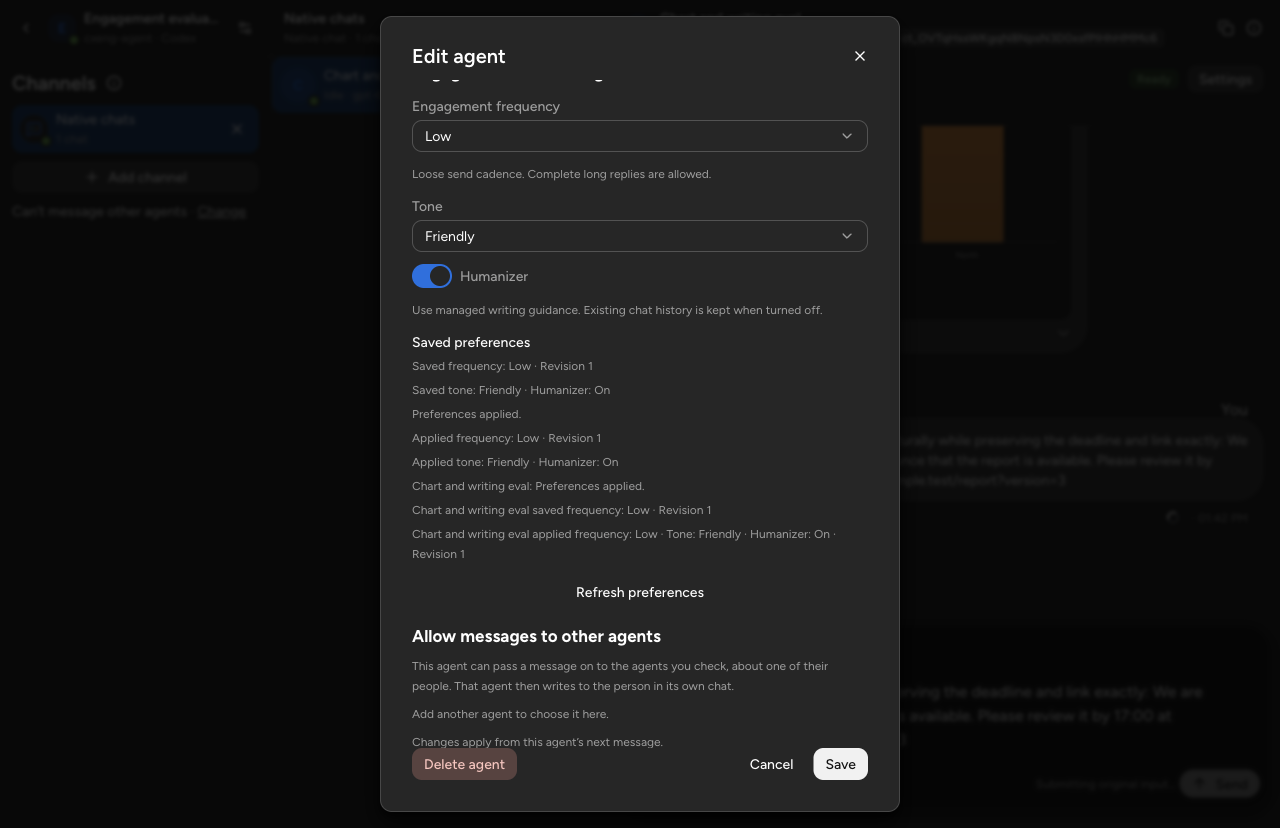
Agent preferences set to Low engagement frequency, Friendly tone and Humanizer On. Matching saved and applied values show that the preferences are active for this chat.
Choose a frequency
| Frequency | Expected conversation |
|---|---|
| Low | Work quietly and combine the result when practical. A suitable emoji reaction can acknowledge something that needs no substantive answer. |
| Medium | Share useful milestones during longer work, then the result. Skip routine narration. |
| High | Use natural back-and-forth and useful updates as the task develops. |
These are loose preferences. There is no character target, message quota or required preamble. A quick task can need one answer at every level; a Low response can still include a detailed answer, chart or file. Essential questions, approvals, failure reports and requested detail remain necessary. A reaction cannot replace an owed result.
Override frequency for one channel
Open the agent’s channels and choose Edit channel. Under Engagement frequency, choose Use agent default or set Low, Medium or High, then save.
For example, an agent can use Medium by default and Low for one messaging channel. Returning that channel to Use agent default removes its override. Tone and Humanizer belong to the agent and apply across its channels; a channel changes frequency only.
The agent receives the effective writing preferences without the messaging service’s identity or the origin of the override. It chooses the same canonical chart or original file; Relay adapts that output to the receiving client. See WhatsApp reply formats.
Read the status
| Status | Meaning |
|---|---|
| Saved preferences | The requested values are stored. This alone does not confirm application in a running chat. |
| Waiting to apply preferences | A chat is waiting for a safe native boundary or confirmation. Let current work and outstanding questions finish. |
| Preferences applied | The saved preferences are active for the reported chat or chats. |
| Preferences could not be applied | The requested values remain saved, but application failed. Read the reported error and repair its cause. |
| Applying preferences is not supported on this computer | The running setup cannot confirm application. Update the relevant Relay components before testing again. |
Use Refresh preferences to read the current state. A chat may show older Applied values beside newer Saved values. Different channels can legitimately have different applied frequencies. Application has not been confirmed for every chat means the available evidence is incomplete; do not treat another chat’s success as confirmation for all chats.
Refreshing or reconnecting does not clear a known failed generation. After repairing the cause, save a changed preference to create a new requested generation and check its status again.
Test an existing agent
Changing a writing preference does not rewrite the agent folder or require new channel credentials.
If the folder still has an older Relay-owned instruction block, explicitly refresh it with agent onboarding: inspect the same folder, review the findings, then repeat with --apply. Keep its provider, model, permissions and text outside the Relay-owned markers. Do not remove the agent or recreate its messaging account to update guidance.
After a managed skill update, start a New chat for the same agent. In an existing messaging conversation, start a new session with /new AGENT, using the saved agent’s name. Older sessions can retain their saved skill selections. A preference-only change can apply at a safe boundary in the existing chat; a fresh chat is useful when testing updated retained assets.
Try a longer task with a meaningful intermediate milestone, a simple acknowledgement, and a comparison of at least three values. Check cadence, tone, the substantive answer and chart values independently. Open the receiving client to check the reply, files and previews.