Connect WhatsApp
This guide connects your own WhatsApp business or Meta test number to an existing CatalEx agent. The person sends messages from their personal WhatsApp account; the agent replies through the connected business sender.
Before you begin
Have these ready:
- A CatalEx agent with a verified native reply.
- A running messaging service. If you run it on this computer, a public HTTPS address or tunnel forwarding to the service address CatalEx shows.
- Access to the Meta app and the WhatsApp account containing the sender you want to connect.
- The Meta app ID, app secret and a system-user access token authorized for WhatsApp messaging and management.
- Your personal WhatsApp number, with country code. For Meta test numbers, add and verify it as a test recipient first.
Enter secrets only in CatalEx’s credential fields. Keep them out of screenshots, chat messages and shell command arguments.
1. Open WhatsApp setup
Open Settings → Channels → Add WhatsApp number. If the app offers CatalEx-managed linking alongside your own credentials, choose Bring your own credentials, then Connect WhatsApp.
Alternatively, open your agent and choose Add channel → WhatsApp → Add a new WhatsApp number. That starts setup for the selected agent.
CatalEx-managed pairing uses CatalEx’s service number and requires sign-in. It is a separate choice from connecting your own Meta number.
2. Complete the connection form
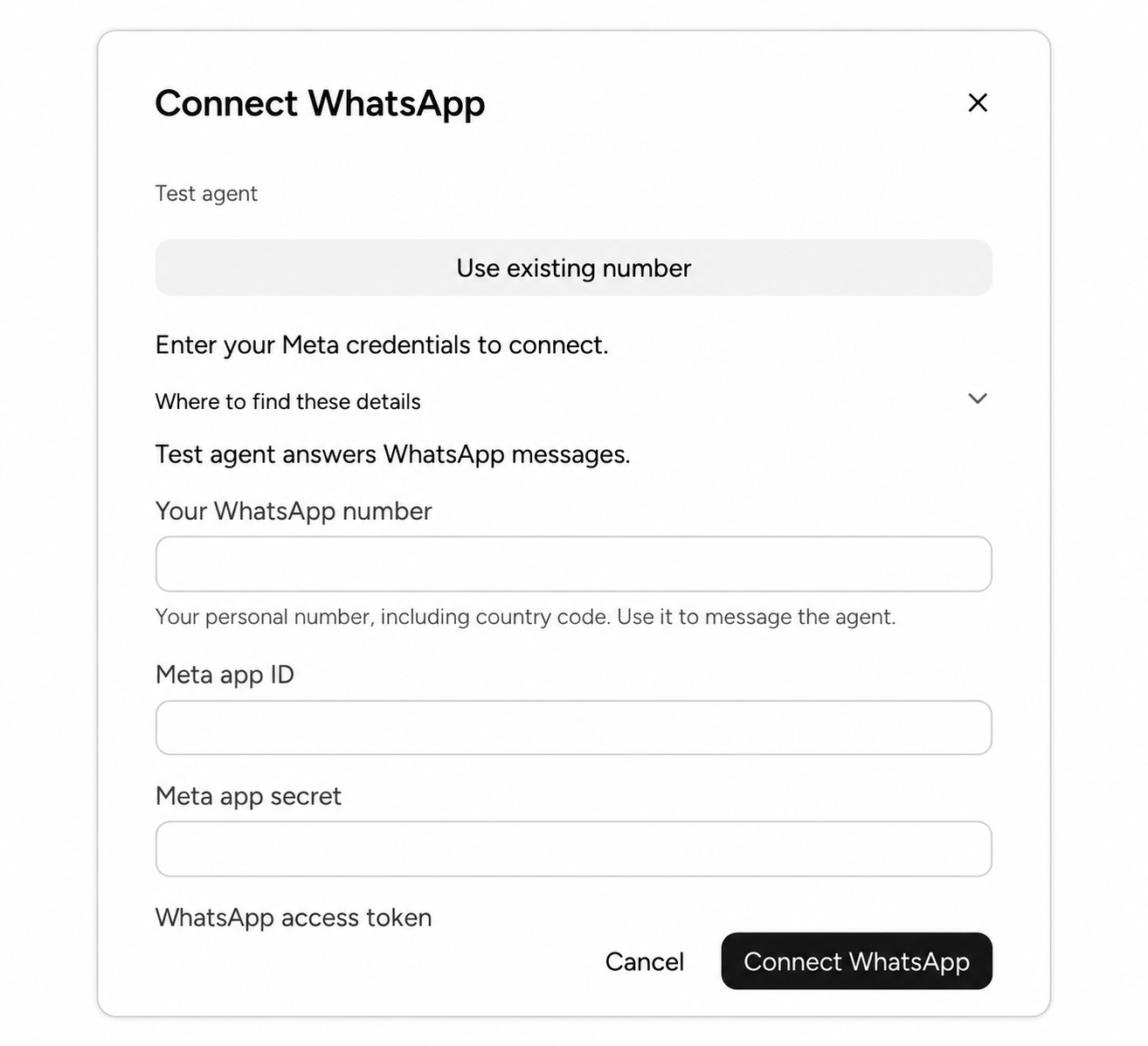
Setup dialog cropped from the app to remove the surrounding account details. The form scrolls; the access-token input and optional IDs continue below the visible area.
Choose Agent that answers WhatsApp messages. CatalEx selects it automatically if only one is available.
Enter Your WhatsApp number, including country code, such as 447700900123. This is your personal recipient number. It is different from the business sender and different from Meta’s numeric Phone number ID.
| CatalEx field | Where to find it |
|---|---|
| Meta app ID | Meta app → App settings → Basic |
| Meta app secret | Meta app → App settings → Basic → App secret → Show |
| WhatsApp access token | Your authorized system-user token |
| WhatsApp business account ID | The account beside your sender in Meta’s Try it out / API Setup page; newer layouts call it Messaging account ID |
| Phone number ID | The numeric API ID beside that same sender |
Leave the business account and phone-number IDs blank to discover accessible numbers automatically. Supply them if the token cannot enumerate accounts or you want to narrow the choice. Use IDs from the same account as your sender.
When Public web address appears, enter your messaging service’s HTTPS origin, without a callback path. CatalEx builds the callback and generates the verification token. A loopback address such as localhost will not receive Meta’s callbacks. If CatalEx finds your tunnel or the server already publishes an address, it reuses it.
3. Connect and finish Meta’s checks
Choose Connect WhatsApp. CatalEx validates the fields, finds available business numbers, configures message delivery and verifies the connection.
If more than one number is available, choose the intended sender. A single result is selected automatically. If Meta requires a verification code or six-digit registration PIN, complete the requested step. Keep the setup dialog open until it shows WhatsApp connected.
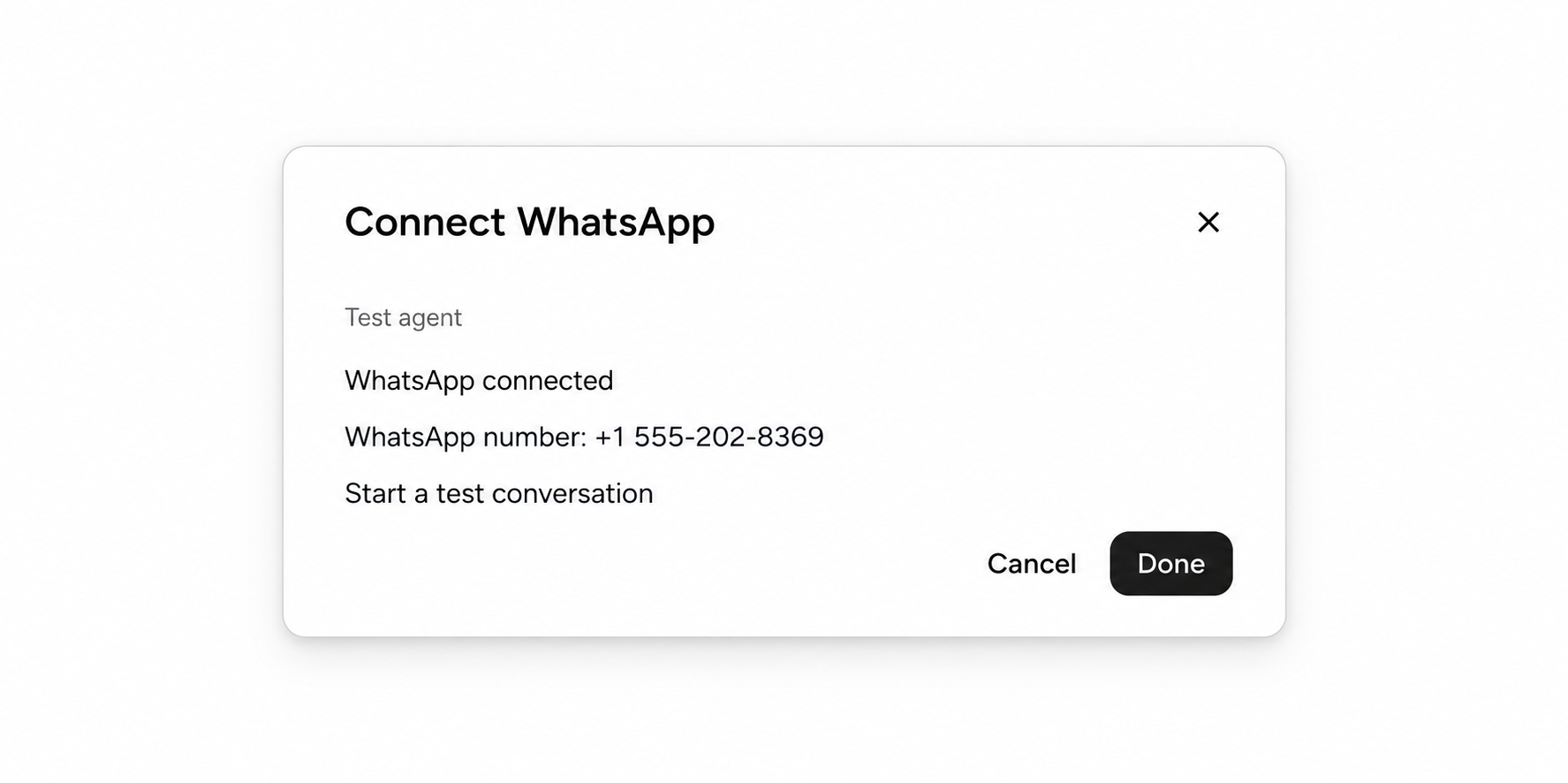
Cropped app view after connection verification. The displayed number is Meta’s public test sender; use your own connected sender when testing.
CatalEx refuses to replace a webhook that already delivers to another integration. Resolve that conflict before retrying.
4. Make sure the number belongs to your agent
If the agent already has this WhatsApp channel, keep it. Otherwise open Agents, select your agent, choose Add channel → WhatsApp, and select the available connected number.
In Settings → Channels, open the number’s Access and limits. Set its allowlist and blocklist for the people who should reach it. Use phone numbers with country codes.
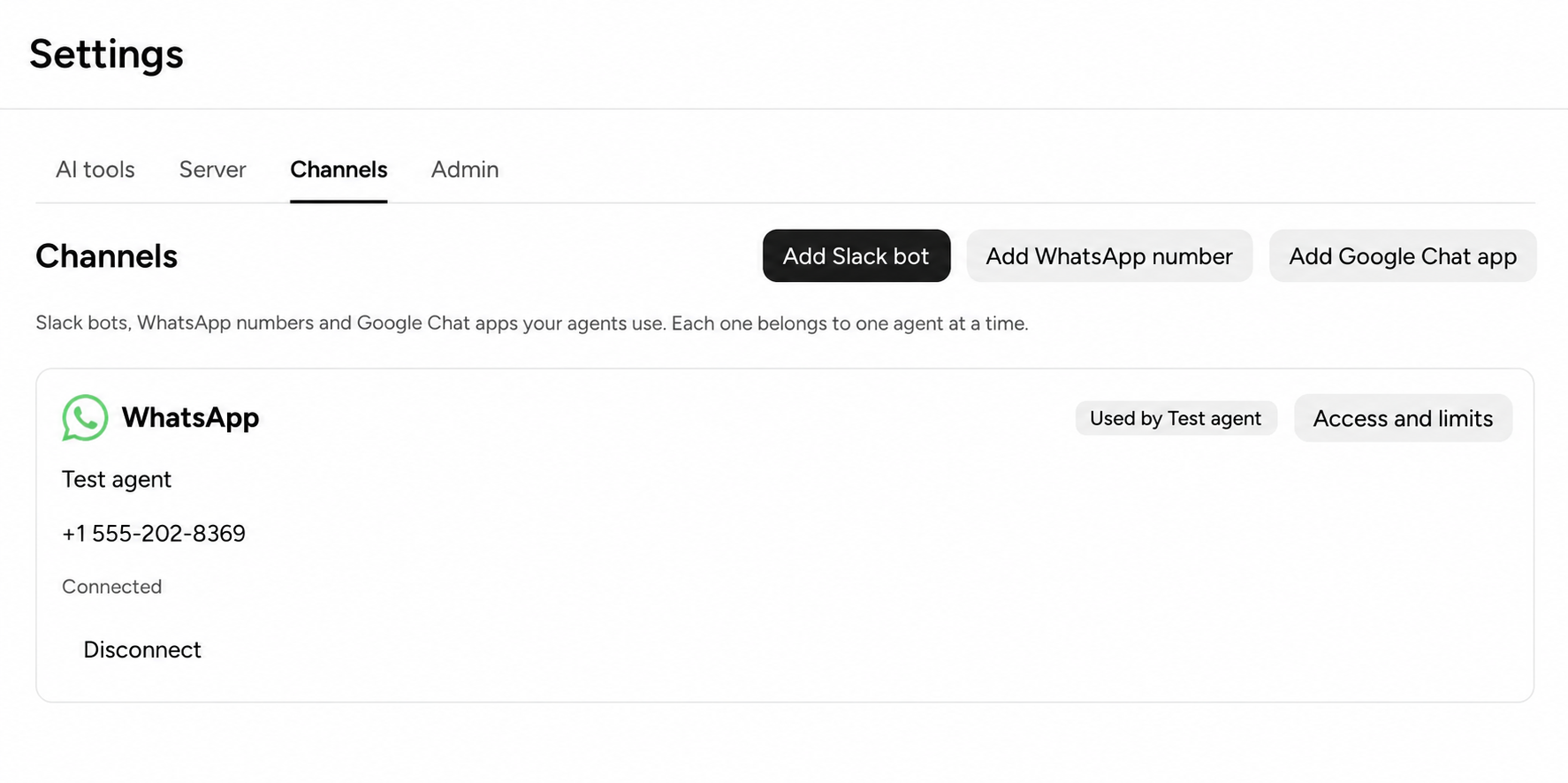
Cropped app view of the saved connection. Used by Test agent identifies the agent assigned to this example number.
5. Verify an actual reply
Choose Start a test conversation when offered, or open WhatsApp on the verified recipient’s phone and message the business sender.
Ask a question your agent can answer from its instructions, files or tools. Confirm all three:
- Your message arrives in the business sender’s WhatsApp chat.
- An agent reply arrives back on your phone.
- The same conversation appears under the agent’s WhatsApp channel in CatalEx.
“WhatsApp connected” confirms provider and callback checks. A reply on your phone confirms the message route and agent too.
Reconnect an existing number
If you removed the local account, choose Settings → Channels → Add WhatsApp number, open setup, then Use existing number. Select it under Number to reconnect and follow the displayed connection steps. If CatalEx asks for credentials, use the same valid Meta credentials; reconnecting does not require generating a new token.
Removing a local account reference leaves the server’s saved installation, credentials and conversations intact. Use existing number reconnects that saved installation. It does not ask for your personal recipient again. Generate replacement credentials only if the token has expired, was revoked, lost the required grants, or you are changing the Meta app identity. See Meta’s access token guidance. Once the number is connected, add it to the intended agent.
If setup says the number is already saved, remove only the new account marked Setup not finished, then repeat with Use existing number.
Troubleshooting
| What you see | What to check |
|---|---|
| No agent yet | Add an agent, start CatalEx, then choose Check again |
| No public web address | Start or repair the service’s tunnel, or obtain its HTTPS origin from the administrator |
| Cannot discover numbers | Supply the Messaging account ID and Phone number ID; check the system user’s access to that account |
| Account not registered | Finish Meta’s sender registration; waiting for app review does not register the phone |
| Permission refusal for a test sender | Give the system user access to the app and test messaging account, including permission to send messages |
| Connected, but no reply | Check agent assignment, recipient verification, allowlist/blocklist, provider login and that the computer stays running |
| Interrupted setup | Choose Check outcome to inspect the original attempt before continuing |
| Credentials expired | Use Replace credentials or the account’s credentials controls for the same number |
| Installation owner conflict | Sign in with the CatalEx account that owns the saved installation |
For Meta test numbers, first confirm that Meta’s sample message reaches your verified personal recipient, then reply from that phone. That separates a Meta test-account problem from Relay routing.
Reply formats
See WhatsApp reply formats for the agreed mapping of text, questions, cards, charts and files, including the update’s implementation status.