Devices
Settings › Devices lists, in one place, the computers that run agents for your CatalEx account and the apps and terminals signed in to it. Signing in on a Mac adds that Mac. To add a Linux server or VM, create a one-time join code on a signed-in device and run the installer on the new computer.
In the app
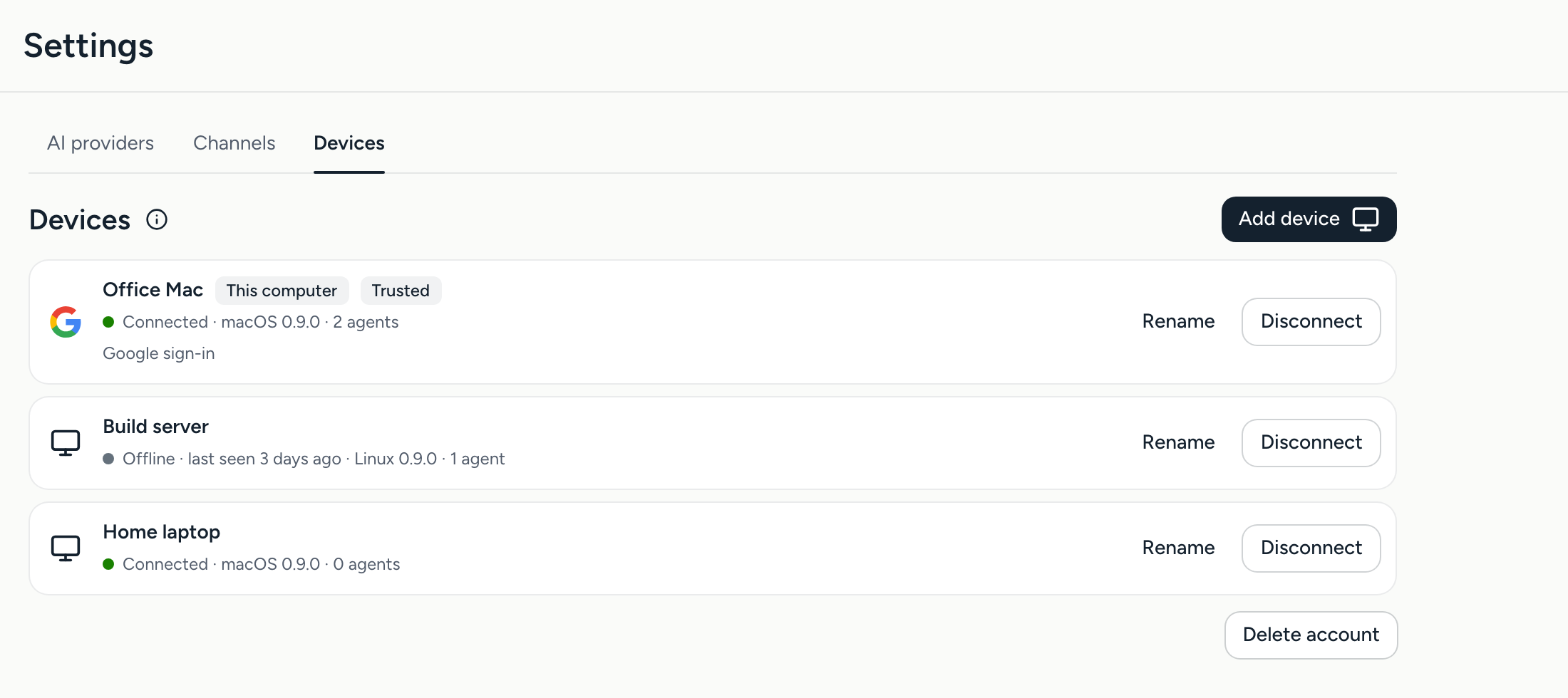
Open Settings → Devices. The tab shows while you are signed in.
Read the list
There is one row per device. A signed-in app and the computer it joined are one row; a computer nobody signed in on (a server joined with a code) and a device that joined no computer (a terminal) each stand alone. Your own device is first.
| On a row | Meaning |
|---|---|
| This computer / This device | The computer you are using, or the sign-in this app holds. |
| Trusted | The device is trusted for changes on your computers. |
| Status line | For a computer: Connected, Idle · last run …, Offline · last seen …, Stale · last seen …, Updating or Disconnected · last connected …, then its system and CatalEx version and its agent count. |
| Device line | How the device signed in, such as Google sign-in, or Terminal · Sign-in code, and Not trusted for changes when it is not trusted. |
Hover the row's icon to read the device's key fingerprint. Each row's actions show as buttons, or as two buttons and a More actions menu when there are three or more.
| Action | When it shows | What it does |
|---|---|---|
| Rename | A computer that is not disconnected | Opens Rename NAME; the new name shows on every device. |
| Disconnect | A computer that is not disconnected | Asks Disconnect NAME? and warns that this removes the computer and disconnects all its agents from CatalEx. The computer stops its agents at once and can no longer connect. Its agents' channels stay bound; joining again with a new code restores them. |
| Delete | A disconnected computer that is not the one you are using | Asks Delete NAME? and erases the computer and its agents for good, with their chats and data in CatalEx Cloud and on that computer (erased the next time it connects). CatalEx itself stays installed there. |
| Keep | A stale computer | Lets it connect again. |
| Trust for changes | A device that is not trusted, when this device is trusted | Trusts it for changes on your computers. Trust only a sign-in you recognize. |
| Sign out | Any other device | Asks Sign NAME out?. It can no longer open your chats or make changes on your other devices; signing it in again needs a new sign-in code. |
On the computer you are using, Disconnect asks Disconnect this computer? instead. This computer stops running agents for your account, so they stop answering from your other devices. You stay signed in, and its agents and chats stay here. The app says This computer no longer runs agents for your account. To delete a computer, disconnect it first (Disconnect this computer first, then delete it.). You cannot delete the computer you are using (This is the computer you are using. Choose Disconnect on its row instead.).
A browser that opened a conversation on the web is listed as a Browser, named for the browser and system, such as Chrome on Mac. It has no device key and is never trusted for changes. Sign out ends it, and so does signing out everywhere.
When a trusted device sees a new sign-in, a banner reads New sign-in: NAME with Trust for changes and Not me, sign it out.
Add a computer
- Choose Add device.
- In the Add device dialog, step 1 shows a command and, below it, a second command to use where CatalEx is already installed. Copy the one you need and run it in the new computer's terminal.
- When it asks for a code, enter the code from step 2. A countdown shows Expires in m:ss. When it expires, the dialog says This code expired. Choose New code.
- Choose Done. The new computer appears in the list, Connected, and the app says NAME joined your account.
The computer you add runs only the agents you add on it. It cannot see or change your other agents or devices, and nobody is signed in on it. The app makes no sign-in code; to sign in a device on it, use the CLI.
After an account move, Rejoin your computers lists the computers that left. Choose Add device beside each, then Done.
If this computer is joined but offline, a banner names the reason and offers Try again, Rejoin or Sign in, whichever fixes it. A computer too old to connect says CatalEx on this Mac is updating: CatalEx updates itself, then connects again. If it cannot reach CatalEx Cloud, check your connection and choose Try again.
With the CLI
How a computer joins
catalex login signs you in. If CatalEx on this computer has not joined an account yet, signing in also joins it, without asking, and makes this device trusted for changes:
catalex login
Expected result: Signed in to SERVICE_URL as EMAIL. then This computer is now one of your computers. If the trust step fails, you stay signed in and the output says to run catalex devices trust-this. To undo the join, run catalex computers leave.
A Mac is named after its macOS Computer Name, or its host name when that is empty.
Before you add a Linux computer
- Sign in to CatalEx on the device you start from.
- The installer joins a Linux computer on amd64 or arm64 with systemd, and you can use
sudothere. Its agents need Codex or Claude Code installed on it. Ifcatalexis already installed on any computer, usecatalex joinbelow.
1. Create a join code
On the signed-in device:
catalex computers add
Expected result: a one-time join code, the fingerprint of this device's key and the installer command for the new computer. The code joins one computer, once. It stays valid for the service's join code lifetime, 15 minutes on CatalEx Cloud. For a shorter lifetime, add --lifetime 5m (30 seconds to 15 minutes). Keep the code private: it goes into a hidden prompt, never into a command line or URL. If it expires, create a new one.
If the command fails with COMPUTERS_DISABLED, the messaging service has computers turned off.
2. Run the installer on the new computer
Run it on the new computer, replacing FINGERPRINT and ORIGIN with the values printed in step 1:
curl -fsSL https://docs.catalex.co/install.sh | sudo sh -s -- \
  --join --trust FINGERPRINT --service ORIGIN
When the installer asks, paste the join code. It installs the catalex command and the CatalEx components, runs them as the catalex service user (home /var/lib/catalex) and joins the computer to your account. The installer downloads from downloads.catalex.co. Without sudo, drop sudo; the installer then runs CatalEx as your own user and warns about it.
--trust pins the key that created the code, so a code from any other key is refused and nothing is saved. A service address with plain http:// is refused unless it is on the same computer (SERVICE_NEEDS_HTTPS).
If catalex is already installed on the new computer, join without the installer:
catalex join --trust FINGERPRINT --service ORIGIN
--service defaults to CatalEx Cloud. --name sets the name your devices show (default: the computer's name). --join-file PATH reads the code from a private file instead of the terminal, and --no-wait returns once the join is accepted. Joining never signs anyone in on that computer.
Expected result: the installer or catalex join reports that the computer joined. Running it again on a joined computer prints This computer is already joined to that account as ID; nothing changed. Check the list from your device:
catalex computers list
The new computer's row shows Connected, or Idle when no agent has run on it lately. It has no agents until you add them.
3. Sign in to the AI tool on the new computer
Agents on the new computer use its own Codex or Claude Code sign-in. Install the tool for the catalex service user, then sign in as that user:
sudo -u catalex -H /var/lib/catalex/.local/bin/claude auth login
# Or, for Codex on a computer without a browser:
sudo -u catalex -H /var/lib/catalex/.local/bin/codex login --device-auth
Use your tool's installed path if it differs. If you ran the installer without sudo, sign in as your own user instead.
4. Add and run agents on the new computer
Run agents and chats commands on another computer of your account with --computer NAME or --computer ID:
catalex agents add --computer 'Office VM' --name 'Support agent' --folder /srv/agents/support
catalex agents list --computer 'Office VM'
catalex chats list --computer 'Office VM'
--folder must be an existing absolute folder on that computer. Sensitive changes on another computer are signed with this device's key and ask before signing; --confirm-signing confirms without asking. Errors you may see: COMPUTER_AMBIGUOUS (the name matches more than one computer; use its ID), COMPUTER_OFFLINE (exit 3) and OPERATION_NOT_REMOTE (the command only runs on the computer itself).
catalex agents list on this computer also lists the agents of your other computers that its agents can message, under Agents on your computers:.
Allow chats from other devices
Other devices of your account can open this computer's native chats and create chats on it. The app has no switch for this. To refuse them (REMOTE_LINKS_OFF), run this on the computer itself; it never works with --computer:
catalex computers settings remote-chat-links off
catalex computers settings
Turn it back on with remote-chat-links on.
Manage your computers
| Task | Command | Result |
|---|---|---|
| List computers | catalex computers list | Columns ID, NAME, OS, STATUS, LAST CONNECTED, LAST RUN, AGENTS. Statuses: Connected, Idle, Offline, Stale (keep or disconnect it), Left (keeps its sign-in), Disconnected. After an account move it also lists the computers that left and have not rejoined. |
| Rename | catalex computers rename COMPUTER_ID 'Office VM' | The new name shows on every device. |
| Keep a stale computer | catalex computers keep COMPUTER_ID | Kept NAME; it can connect again. |
| Disconnect a computer | catalex computers disconnect COMPUTER_ID | Asks first (default No; --yes without a terminal). It stops its agents at once and can no longer connect. Its agents' channels stay bound, and it can join again with a new code. Works on an offline computer. |
| Delete a disconnected computer | catalex computers delete COMPUTER_ID | Asks first (default No; --yes). Erases the computer's agents and their chats and data in CatalEx Cloud, and on the computer when it next connects. A connected computer is refused (COMPUTER_NOT_DISCONNECTED). |
| Leave from this computer | catalex computers leave | Asks first (default No; --yes, --no-wait). This computer stops serving agents; its agents, settings and chats stay, and your sign-in stays. Join again with a new code. |
| Inspect this computer | catalex computers this | Its key fingerprint, the account it joined and the device keys it trusts, with the reason for each. --trust-this-device makes a computer that trusts no device key yet trust this device. |
catalex computers disconnect and delete refuse the computer you are on (CURRENT_COMPUTER); use catalex computers leave there. delete needs a CatalEx Cloud that supports deleting computers, otherwise it says to update CatalEx Cloud.
Signing out with catalex logout does not remove a joined computer; it keeps serving its agents. A disconnected computer's catalex status reports that it was removed from its CatalEx Cloud account, and the app offers Rejoin.
Devices and sign-in codes
Devices are the apps and terminals signed in to your account. A device signed in with Google is not trusted for changes on your computers until a trusted device trusts it.
| Task | Command |
|---|---|
| List devices (ID, NAME, APP, TRUST, SIGNED IN WITH, KEY) | catalex devices list |
| Trust another device (compare its key before you confirm) | catalex devices trust CLIENT_ID |
| Trust this device on a computer that joined your account | catalex devices trust-this |
| Sign a lost or unknown device out | catalex devices remove CLIENT_ID |
APP is App for the CatalEx app and Terminal for the catalex command. devices trust and devices remove ask first (default No; --yes confirms), and devices trust names the key's fingerprint to compare with the one the device shows.
Sign-in codes
To sign in a device that has no browser, or to run catalex as yourself on a computer you added with a join code, create a one-time sign-in code on a trusted device. The app has no screen for this.
catalex login-codes create
Run the printed catalex login --code --service ORIGIN command on the other device and paste the code. That device signs in and is trusted at once. The code works once and expires (--lifetime changes it). login-codes create waits for the other device; with --no-wait it only prints the code. If you stopped it before the other device signed in, run catalex devices trust-new to trust it.