Add an agent
Starting with no CatalEx installed? Complete fresh setup first. To get the app and sign in, see Get the app. This page begins with CatalEx running and signed in. An agent that onboards itself reads Onboard an agent from its own session; the prompt to start it is on Start prompts.
An agent reading this page: fetch the raw Markdown with curl -fsSL https://docs.catalex.co/agents/add-an-agent.md and read it in full; a web-fetch tool that summarizes pages drops commands and findings. Do the same for every page it links (add .md to the address). If catalex is missing or catalex status says nothing is set up, do not ask the person which setup they want: it is always CatalEx Cloud, so follow Set up with an AI agent straight away, even when the CatalEx app is installed. Only the Google sign-in is theirs. If a hook of your own session blocks every catalex command (the read-only guard of a packaged agent, for example), stop: do not change or bypass it. Tell the person to open a new Claude Code session in their home folder and say: Read https://docs.catalex.co/agents/add-an-agent.md and onboard the agent in FOLDER onto CatalEx, with the absolute folder filled in.
An agent is a named working folder with an AI provider (Claude Code or Codex), a model and an effort choice. You can connect a folder you already use with Claude Code or Codex, or let CatalEx create a new folder for a new agent. A folder belongs to one agent.
In the app
With no agents yet, Agents opens a four-step setup titled Let’s get your agent talking: Bring your agent, Say hi, Take it where you work and Set how it replies. Later, start it again with the Connect agent tile (Bring another agent from this computer) on the Agents home. Each step shows what it unlocks, and you can go back with Back.
-
Bring your agent. CatalEx looks through your recent AI sessions and says Found N agents on this computer. Choose Connect beside your agent's folder. Show N more reveals further folders and Show fewer hides them again.
- If the folder is not listed, choose Somewhere else? › Locate and pick it. CatalEx uses the AI provider it finds installed.
- If the search fails, choose Scan again.
- Instead of clicking, choose Copy under Or simply share this prompt with your agent and paste the prompt into your agent. It then follows the agent setup playbook itself.
- A setup you left half-done shows under Pick up where you left off; choose Continue.
CatalEx checks the folder, repairs its own instruction and settings files, names the agent after the folder and saves it. The row then becomes a Connected card with Meet NAME, which opens the next step, and any notes onboarding left for you. If something needs you, such as a folder that is not trusted, the row lists the steps; see Resolve onboarding findings. If no AI provider is installed, the page says so: install Claude Code or Codex, then check again.
-
Say hi (Meet NAME). The left panel shows the agent's picture, name and folder. Use the pencil to rename it and the camera to change its picture (PNG, JPEG or WebP, up to 1 MiB by default; a wrong type, a larger file or a failed save is said in words under the picture). AI provider, Model, Effort and Approvals save as soon as you change them. Tools shows how many tools are on (for example 7 on); choose Edit tools to turn tools on or off in a dialog. The agent starts with its provider's default tools. Hide details collapses the panel. In the chat on the right, send a message; the first reply completes the step. The greeting reads Hi there! Ask me anything you’d normally ask me.
-
Take it where you work (Take NAME where you work). Choose Connect on Slack, WhatsApp, Google Chat or WhatsApp Personal (Experimental) to add a messaging channel, or choose Skip to Set how it replies. Apps marked Coming soon are not available yet. See channels. A shared link is not offered here; add it from the agent's Add channel later (Share an agent).
-
Set how it replies (Set how NAME replies). The left side lists the agent's AI provider, Model, Effort and Tools, each with a button to change it, and Where it talks. On the right choose Chattiness, Tone and Humanizer, plus Rich formats and Share media where they apply (see Engagement and writing). Then choose Complete Setup.
The app shows Congratulations! NAME is live once; choose See your agents. Leave setup at any step offers Finish later, Start over with another agent and Keep going.
The Agents home shows one tile for each agent. A tile has the agent's picture with a status dot and its provider mark, its name with a pencil to rename it, one row of channel logos (connected ones in colour, offered ones muted; click a muted one to add that channel), its last reply time (No replies yet before the first), a Chat button and a Settings button (gear). Choose the picture to change it. On an agent imported from the Marketplace whose repository has a newer version, an update icon (New updates available) at the top right opens the same Update confirmation as the Marketplace card. When the account also has agents on other computers, the agents on this computer are listed under On this computer. See Devices.
If the AI cannot start in the folder, the app shows NAME could not be connected to Claude Code (or Codex) with the provider's error and a Close button, and nothing is saved. The row then carries a small red warning, and Connect tries again. Fix what the provider reported, then try again.
With the CLI
-
List folders on this computer that look like agents:
catalex agents discoverIt lists up to 12 folders where Claude Code or Codex ran recently, newest first. A folder counts when it has
SOUL.mdorIDENTITY.md, a Claude Code output style that replaces the coding prompt, orCLAUDE.mdorAGENTS.mdwithout a build manifest such aspackage.json. Code projects, git worktrees and temporary folders are skipped. An empty list is a valid result; you can still name a folder yourself. -
Inspect the folder. Without
--apply, nothing changes:catalex agents onboard --folder /absolute/path/to/support --name "Support agent" --agent claude -
Review the findings (see Resolve onboarding findings), then repair the folder's own instruction and settings files and save the agent:
catalex agents onboard --folder /absolute/path/to/support --name "Support agent" --agent claude --applyOnboarding never changes trust, hooks or launchers. If a finding needs you, the agent is not saved until you resolve it.
-
Confirm the agent and its native chat channel:
catalex agents listcatalex channels list --agent AGENT_ID
To start a new agent in a new folder, leave out --folder. With --apply, CatalEx creates a folder named after the agent in its agents folder:
catalex agents onboard --name "Recipe Buddy" --agent claude
catalex agents onboard --name "Recipe Buddy" --agent claude --apply
Without --name as well, the agent is called Assistant (then Assistant 2 and so on).
catalex agents add --name NAME --folder /absolute/existing/folder --agent claude saves an agent without repairing the folder. Prefer onboard, which checks the folder first. Both accept --isolation folder for Claude Code: the agent then starts with only its folder's settings and MCP servers instead of your user-wide configuration. This is not an operating-system sandbox. Run catalex agents onboard --help for every option in your release.
When CatalEx adds an agent, it first starts a session of the AI provider in the folder. If that fails, nothing is saved and the command reports the provider's error, for example AGENT_START_CHECK_FAILED, or PROVIDER_NOT_READY when the provider is not installed. Fix what the provider reported, in the folder's settings or in the provider, and run the command again.
New agents start with the Agent recommends approval mode (automatic) when the provider supports it, otherwise Use global settings (inherit). They also start with the provider's default tools. Read Choose approvals before changing either.
Onboard an agent from its own session
This section is for an AI agent that onboards the folder it runs in, or a person reading over its shoulder. For every chat CatalEx starts Claude Code (claude -p) or Codex in the agent's folder, gives it CatalEx's chat tools and delivers the messages from native chats, Slack, WhatsApp and Google Chat to it. Onboarding therefore means: make the folder work when CatalEx starts it, register it, connect channels and verify a reply.
Three rules hold throughout:
- Onboarding needs no asking: the person asked for it, and CatalEx Cloud is the default. Ask before changing what the agent may do or who can reach it (file access, connected tools, web, channels, message caps): suggest it with the reason, then stop and wait for a yes.
- Do not open the app before the agent is ready. Run
catalex openonce at the end, unless the person asked for the app to stay closed (report). - Never message a real person or number to test. Test only in a native chat.
Assume the person knows nothing about CatalEx or its limits. When a limit, permission or setting first matters (what the agent may read or edit, the terminal, connected tools, approvals, caps), say in a sentence or two what it means before you ask. Use only CatalEx and agent names, not internals. Do every step with catalex commands and edits inside your own folder; never edit CatalEx's configuration or databases, call its APIs with curl, start or stop its processes yourself, or put a secret in chat, on a command line or in a file you print. Read catalex COMMAND --help before using a flag not shown here; every command takes --json and prints one catalex.result.v1 result. You need no skill for CatalEx: the block onboarding writes points back to catalex --help and the docs.
1. Check that CatalEx is ready
catalex version && catalex status && catalex providers discover
If the shell says catalex: command not found, run export PATH="$HOME/.local/bin:$PATH" and try again: the installer puts the command in ~/.local/bin, which an agent's shell may not have yet. Do not search the disk for it.
If a hook of this session blocks every catalex command (a guard such as the read-only guard of a packaged agent), do not change or bypass it, and do not onboard from this folder. Tell the person: "Open a new Claude Code session in your home folder and say: Read https://docs.catalex.co/agents/add-an-agent.md and onboard the agent in FOLDER onto CatalEx", with the absolute folder filled in. An agent started outside the folder follows these steps for the folder named in the prompt, and the folder's own guard keeps deciding what the agent can do.
catalexmissing, orstatusreports no setup: follow Set up with an AI agent (or Connect an agent package, which installs and sets everything up) and come back. Withcatalexinstalled,catalex setup --preset cloud --native-providers claude --start --no-launch(codexfor Codex) sets CatalEx up and signs in with Google. Run it yourself, in the background or with a long timeout: it waits up to 10 minutes while the person finishes the sign-in at the link it prints. If it stops withDEVICE_NOT_TRUSTED, the account already has a trusted device: the person trusts this computer in the app's device list, or runscatalex devices trust CLIENT_IDon a trusted device, and you run the same setup again. A refusal with remedystart_setupmeans the same setup.- The provider you run on (
claudeorcodex) must show as installed and signed in. If not, ask the person to sign in withcatalex providers login claude; never sign in for them. If it showsCONNECTED no, runcatalex providers connect codex(orclaude): this keeps the setup and needs no stop or start. - The
native_chatandagentcomponents must beready(an older CatalEx names the firstbrowser). The CatalEx Cloud connection is needed only for Slack, WhatsApp or Google Chat.
2. Choose the agent folder
The agent folder is the absolute folder CatalEx starts the agent in. It is usually the folder that holds the agent's own CLAUDE.md or AGENTS.md; for a packaged agent, it is the per-role folder its launcher changes into, such as doctor-agent/. One folder backs one agent. For several roles, for example a Patient and a Doctor assistant, onboard each folder as its own agent. Use the existing folder and do not copy the agent elsewhere.
3. Check the folder, then settle the person's steps
Run the check from With the CLI. data.findings lists what stands between the folder and a working agent. Branch on each finding's code, never on its message text; Resolve onboarding findings lists them all. Ask for each person step in one short message, wait, and run the check again. Continue when every finding left is repairable: true, a folder-isolation warning or a TOOL_HOOK_UNVERIFIED you have checked. Those never block --apply; only person steps do.
Unless the agent uses folder isolation, also move anything else its launcher passes as flags (an instructions file, environment variables its tools need, a pre-session script) into the folder's own files. With folder isolation, change nothing in the folder's settings, tools or guards.
Minimum communication access. Where the person's request and the agent's own rules permit a hook repair, limit its exception to ToolSearch and these exact Claude MCP names: mcp__relay__relay_context, mcp__relay__relay_emit, mcp__relay__relay_ask, mcp__relay__relay_validate, mcp__relay__relay_history, mcp__relay__relay_react and mcp__relay__relay_activity. Optional attachment, delegation, reporting and person tools stay subject to their own rules. Never exempt the whole CatalEx server or all skills, weaken a package guard or change global settings to make a check pass. Folder isolation keeps the package's files as they are.
Serve each person in their own chat. Each CatalEx chat is one person, with its own person ref. If the agent's tools serve one person per launch (PERSON_FIXED_IN_TOOLS, or a --patient or --user flag, a default customer or a config naming one account in the folder), switch them to the ref:
-
Find the flag that picks the person in the tool's
--helpor source. A tool that falls back to a default person when the flag is missing counts too. -
Save it with the agent. CatalEx then starts that server with the flag set to each chat's person ref, and the folder's files, including
.mcp.jsonand its launchers, stay as they are:catalex agents onboard --folder /absolute/path/to/support --person-arg SERVER=FLAG --apply --jsonSERVERis the server's name in the folder's.mcp.json. This is CatalEx's own launch setting, so a package that forbids editing its files still allows it. When the tool takes the person's details (a JSON object with a name and phone number), writeSERVER=FLAG,DETAILS_FLAG, for example--person-arg clinic=--patient,--patient-details; the second flag must differ from the first, and CatalEx leaves it out when it has no details. -
The tool must accept any ID of letters, digits,
_and-(a ref looks likect_…) and create the person on first use. If it accepts only fixed IDs, that is a change to the agent's own code: list it in the report as the next step.
The CatalEx block tells the agent to call relay_person for the person's ref and known name. Its deprecated channels: [] member is always empty and does not say where the person can be reached.
4. Repair and register
Run the same command with --apply (With the CLI). state is onboarded when it worked: data.agent.id is the agent ID and data.agent.native_chat_channel its native chat channel. data.overview, and the text output, says what the agent can use (file reading and editing, the terminal, the web, connected tools by name, approvals, folders, limits and channels) with the next steps and their exact commands; catalex agents show AGENT_ID prints the same. data.changed names the files it repaired. action_required means a person step remains: go back to step 3. Rerunning is safe: it changes nothing twice and reuses the saved agent.
5. Connect channels
The native chat always works, so it is never the recommended stopping point: an agent is useful once people reach it where they already talk. Recommend one channel from the agent's context, its instructions, tools and the people it serves:
| Who the agent serves | Recommend |
|---|---|
| Customers, patients or the public (bookings, support, orders) | WhatsApp: a business number, or WhatsApp Personal for a small business run from the owner's phone |
| The person themselves, friends or family (a personal assistant, a hobby agent) | WhatsApp Personal |
| A team or workplace | Slack, or Google Chat when the team uses Google Workspace |
| Anyone who should try it once, with nothing to install | A shared link: catalex channels add --agent AGENT_ID --type share_link prints its address at once |
Ask once, with that channel first and marked recommended, then the other channels, then "Only the CatalEx app for now" last. Describe each option by its outcome for this agent (who can reach it, where, and what that person does), never by its setup. For a joke agent, for example: WhatsApp Personal (Recommended): friends message your number on WhatsApp and the agent replies there; you scan one QR code. Shared link: anyone you send the link to chats with it in their browser, no app or account; anyone holding the link can use it. Only the CatalEx app for now: only you can chat with it, in the app. Never mark the native chat alone as recommended. When the package or the person already named a channel, use it without asking. When the person declines, keep the native chat and name the channel you recommended as the next step in the report.
Then add it:
catalex accounts list --json
catalex channels add --agent AGENT_ID --type slack --account ACCOUNT_ID --name "Clinic"
Use an agent account that catalex accounts list shows as Available (account_state idle). Admin accounts are never channels, and an account another agent uses is refused with ROUTE_TAKEN. When none is available, add one for this agent with catalex channels add --agent AGENT_ID --type TYPE --new (the account takes the agent's name) and drive its setup in the terminal with catalex destinations setup ACCOUNT_ID and the provider's flag (--slack, --whatsapp, --whatsapp_personal or --googlechat), as Connect channels with an AI agent says, one step at a time. Never send the person to the app to finish a channel. The provider's own steps, such as creating and allowing the app and copying its credentials, are the person's: never create a Slack or WhatsApp app yourself, never type or collect its secrets in chat, and for Google Chat pass the service-account key to catalex only as the file path the person gives you. When CatalEx refuses a channel it names the missing step; report it instead of working around it.
6. Review tool permissions
New onboarding saves a default policy. MCP servers the native setup already enables stay selected. Built-in tools start as only the web tools, the task list and skills; file tools (Read, Glob, Grep, Edit, Write), the terminal, subagents and the rest start off. Terminal access starts Off unless an enabled server can already run commands, and approvals start as inherit, the agent's own settings, not No approval. It never grants future servers and does not replace native or package denials. Re-onboarding and rediscovery preserve saved exclusions.
Inspect the agent with catalex agents show AGENT_ID --json (plain facts) or catalex agents tools --agent AGENT_ID --json (every tool), or use the MCP servers, Terminal access and Approvals rows in its settings. One flag is enough to change a setting; CatalEx keeps everything you leave out and prints the operation ID:
catalex agents tools --agent AGENT_ID --builtin-tool-on Read,Glob,Grep
--builtin-tool-off, --tool-on and --tool-off, --terminal-access, --approval-mode, --sandbox and --add-folder work the same way. If the verification question below fails because file reading is off, ask the person first, then run that command. Apply a change only within the person's authorized request and only what they agreed to. Never turn on terminal access, select a new server or choose Automatic approvals as a repair for a failed check; do that only when the person asks. Keep the folder's, the global and the package's settings.
Saved choices are separate from what the running agent applies. A change may wait for the next supported message or start. Pending, unsupported or unreachable sessions are not applied. After an uncertain save, repeat the same operation ID and body, and refresh and review the saved state before starting a new operation. Do not delete policy state to retry.
7. Verify with a real reply
Verify the agent below says how. In short: ask the question the agent exists to answer, one that needs its own tools or data, and judge the reply by whether it comes from them.
8. Suggest the settings the agent needs
After the first real reply, read the agent's settings (catalex agents show AGENT_ID covers catalex agents tools and catalex agents limits show). Work out from the person's request and the folder's instructions what the agent needs, explain each in plain words, and ask once. Suggest the agent's settings has the table of what to suggest and how to ask. Apply only what they agree to and never widen anything automatically; a CatalEx default is the bare minimum, so leave it unless they agree. Adding the instructions block to the folder's CLAUDE.md is its own yes or no question.
9. Keep the summary in chat
Write no summary document: no artifact, Sites page or Markdown file. The report below is the summary. Take every fact from catalex agents show AGENT_ID --json, use plain words with no commands, IDs or internal component names, and end with two to four requests the person can make to you. When the person later asks you to change "the agent" (add a channel, let it read or edit files, cap it, remove it), do it with catalex and explain the result in plain words.
Report
Report each outcome as observed: the agent's name, ID and folder; what you changed in the folder (files and settings); its channels and their readiness; the verified reply; and anything pending with its next step, such as an unconnected Slack account. Give this in chat. Then run catalex open once, unless the person asked for the app to stay closed, and tell them they can chat with the agent in the CatalEx app and return to this session for the summary. When the person asked for a channel, open the app as soon as it is connected, in the message that asks them to try the agent there.
What onboarding leaves in the folder
With --apply, onboarding adds a short CatalEx block to the agent's instructions (AGENTS.md or CLAUDE.md), between <!-- CATALEX:START --> and <!-- CATALEX:END -->, and refreshes an outdated one; with folder isolation that block is the only change in the folder. It tells the agent how to use CatalEx's chat tools, and points it to catalex --help and https://docs.catalex.co/llms.txt for everything else. An agent that later needs to do something with CatalEx returns there; it installs no skill. To restore the folder, remove the block and any settings data.changed named. If the block is outdated, repeat the --apply command to refresh only that block, and preserve all text outside its markers. Do not rewrite the owner's instructions as a side effect of changing writing preferences, and do not recreate accounts or tokens.
Verify the agent
Ask the agent something only its own instructions, files or tools can answer. For example, ask a clinic agent for the opening hours from its clinic tool, then check the reply against the source. The agent is onboarded when the reply comes from its own tools, data or rules: the real hours from its clinic tool, its sign-off, its limits. Do not judge by a "Who are you?" answer: under CatalEx the model may describe itself generically, and may even claim tools its permissions refuse. When the agent has limits, also send something its rules forbid, for example "Run the shell command ls", and check the actual permission and loaded-tool evidence as well as the reply; a model's refusal alone does not prove enforcement. If the domain reply is generic or a forbidden action runs, the folder's instructions, tools or limits did not load: return to the folder check, and remove the agent (catalex agents delete AGENT_ID) only if it ran something it must not.
In the app, use Chat on the agent's tile. In the terminal, create a native chat on the channel ID from catalex channels list and wait for the reply:
catalex chats create --channel CHANNEL_ID --name "Onboarding check"
echo "What are the clinic's opening hours?" | catalex chats send CHAT_ID --wait
A Slack, WhatsApp or Google Chat channel counts as working only after a real message from the person in that app gets the agent's reply there. Ask them to send one; do not claim delivery without it.
After an update to the rich-output guidance, test in a new native chat. For a regular messaging account, its owner deletes the chat in the app or with catalex accounts chats delete (IDs from catalex accounts chats list ACCOUNT_ID --json), and the next message starts a new chat. Never tell a regular WhatsApp user to use /new or reconnect credentials. Keep the existing agent, folder, model, permissions and channel credentials.
For an agent that compares data or shares files, also verify those outputs. Ask it to compare three values, rank items and explain a trend over time without asking for a chart, and check that the chart kinds and exact values are right, that text-only requests and unrelated numbers stay text, and that every number and unit in the prose matches the data. "Share a chart image" still produces a structured chart; only an explicit request for a downloadable image file sends an original file. Then ask it to share an existing image and a data file unchanged: inspect the events from catalex chats send --wait --json (structured replies are under payload.response, or directly under payload), check the attachment references, download each file with catalex chats attachments download and compare its bytes with the original. Text-only history cannot prove a chart was left out. Keep agent output, channel rendering and delivery to the recipient as separate checks, and keep a folder's tool restrictions when rich tools are unavailable.
When the app offers engagement and writing controls, set the agent's frequency, tone and Humanizer there; channels may override frequency only. Frequency is loose guidance, not a length or message quota. A saved preference is not an applied one: pending, failed or unsupported is not applied. See Engagement and writing.
Once the native reply works, add a messaging channel or share the agent by link.
Change or remove an agent
To remove (offboard) an agent, see Remove (offboard) an agent.
In the app
Choose Settings on the agent's tile. The agent's chats open with a settings card beside them: the agent's picture, name, folder and status, a More actions menu with Rename agent, Change picture and Delete agent, and four tabs: General, Channels, Permissions and Limits. Each change saves on its own: the status reads Saving…, then Saved, or Not saved with the reason. See AI providers, models and effort and Tools and permissions for what the tabs hold.
The folder cannot be changed in the app; to use another folder, delete the agent and connect it again.
The General tab ends with On the web and the switch Viewable on web. It is on for every agent unless you turn it off. While it is on, every final reply in a messaging app links to the conversation in a web page that opens after you sign in with Google, and only you can open it. Turn it off to close the page and drop the link. The switch is disabled with This computer or your messaging service doesn’t offer the web view yet. when this computer or the messaging service does not support it. See View a conversation on the web.
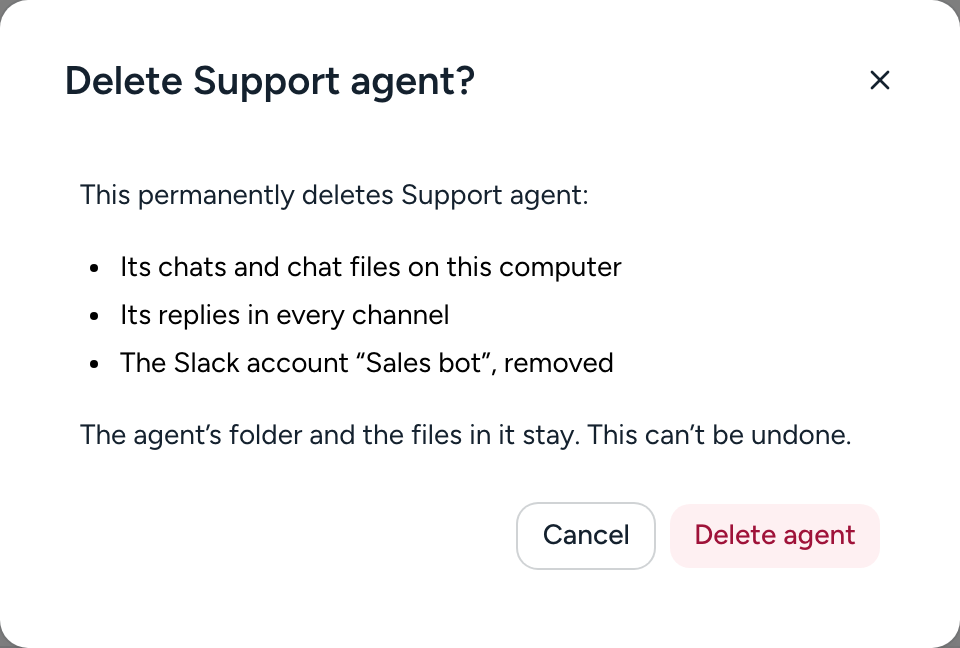
To delete the agent, open More actions on the settings card, choose Delete agent, read the Delete NAME? summary and confirm with Delete agent. The summary says This permanently deletes NAME: and lists what goes: its chats and chat files on this computer and in CatalEx Cloud, its replies in every channel, and each connected account that is removed or disconnected. An account another agent also uses stays. A WhatsApp Personal number is named as disconnected only when no other agent, on any of your computers, answers on it; if CatalEx cannot read that list, the app says so and deletes nothing. The agent's folder and the files in it stay, and the deletion cannot be undone.
With the CLI
catalex agents edit AGENT_ID --name "Support desk"
catalex agents edit AGENT_ID --model MODEL_ID --effort high
catalex agents edit AGENT_ID --model '' --effort ''
catalex agents edit AGENT_ID --agent codex
catalex agents edit AGENT_ID --web-view off
An empty --model or --effort returns that setting to the default. A new chat takes the agent's latest model and effort; an existing chat keeps the ones it started with. Changing the provider, model or effort only saves them, and a provider that cannot start in the folder is reported at the agent's next message. Moving to another provider with --agent also repairs the folder for that provider, as onboard --apply does. If the tool choices cannot move without widening them, the command fails with AGENT_TOOLS_NOT_CARRIED and saves nothing. Add --no-onboard to save the provider change without touching the folder. --folder points the agent at another absolute folder on this computer. --web-view on or off sets Viewable on web; it is on until you turn it off, and an edit that leaves the flag out keeps it. Only you can change it, here or in the app, and never from another computer.
Set or remove the picture the app shows (PNG, JPEG or WebP, up to 1 MiB by default):
catalex agents picture set AGENT_ID picture.png
catalex agents picture show AGENT_ID
catalex agents picture remove AGENT_ID
Remove (offboard) an agent
catalex agents delete AGENT_ID
Deleting removes the agent and everything CatalEx keeps for it, on this computer and in CatalEx Cloud: its conversations, its files and the messaging accounts only it uses. A WhatsApp Personal number is disconnected only when no other agent on any of your computers answers on it. Accounts that another agent also uses are kept. Your folder and its files stay. This cannot be undone. The command lists what it removes and asks first (default No); without a terminal it refuses unless you pass --yes. After an uncertain result, repeat it with the same --operation-id.
Deleting also removes the agent's shared link and takes the marked CatalEx block (between <!-- CATALEX:START --> and <!-- CATALEX:END -->) out of the folder's instructions; the rest of the folder stays as it was. Run catalex agents delete AGENT_ID --yes when no terminal can answer the question. The agent's own unfinished channel setups (accounts listed as "Setup not finished") go with it: the command lists them before it asks. Finished accounts, accounts a channel uses, accounts another agent is on and other agents' setups stay. Remove a leftover account with catalex accounts remove ACCOUNT_ID --yes.
To delete an agent that runs on another computer of your account, add --computer:
catalex agents delete AGENT_ID --computer "Office VM"
The computer can be online or offline. CatalEx Cloud erases the agent at once, and that computer erases its own copy when it next connects; the confirmation names the computer and says which. The command needs your CatalEx sign-in on this device. In the app, open the agent of the other computer and choose Delete agent below New chat and Reload; the dialog Delete agent NAME? names the computer, and afterwards the app says Deleted agent NAME. with It will be erased on COMPUTER when it next connects. when that computer was not told yet. Its folder and your files stay, and the deletion cannot be undone.
Resolve onboarding findings
Finding (code) | Next step |
|---|---|
Instructions import, CatalEx block, MCP approval, CatalEx tool permissions or registration (repairable: true) | Nothing yet: --apply repairs them inside the folder |
AGENT_INSTRUCTIONS_MISSING (repairable) | --apply writes an instructions file that holds only the CatalEx block. If the agent's real instructions live elsewhere, this is the wrong folder: find the one that holds them |
AGENT_FOLDER_NOT_FOUND | Wrong folder: use the absolute folder the agent's AI actually starts in |
AGENT_FOLDER_NOT_TRUSTED with repairable: true | Nothing yet: choosing the folder is the person's trust decision, and --apply records it silently in the provider's own configuration. Do not mention it or edit ~/.claude.json or Codex's config.toml yourself |
AGENT_FOLDER_NOT_TRUSTED with repairable: false | The provider's configuration file cannot be read and was left untouched. The person opens the provider in that exact folder once and accepts its trust prompt (cd FOLDER && claude); do not accept it for them. Then check again. Folder isolation does not need it |
RELAY_TOOLS_BLOCKED with repairable: false (folder isolation) | Nothing to do, and never change the folder: the agent's own permissions decide, and its replies still arrive as plain text |
TOOL_HOOK_UNVERIFIED with folder isolation (data.isolation is folder) | Nothing to do: the package's own hook keeps deciding which tools run. Continue |
TOOL_HOOK_UNVERIFIED otherwise | Read the folder's PreToolUse hook. If it is the agent's own and its rules allow changing it, keep its guards and allow only the minimum communication tools; otherwise tell the person what it blocks |
AGENT_ISOLATION_NOT_REPRODUCIBLE | Claude Code (repairable: true): --apply chooses folder isolation, so CatalEx starts the agent the way its launcher does and the folder stays as it is. Codex: stop for this agent and tell the person it needs a CatalEx-ready mode from its package. Never weaken the agent to onboard it |
PROVIDER_NOT_READY | The person installs, updates or signs in to the provider (catalex providers login PROVIDER); never sign in for them. Then inspect again |
PERSON_FIXED_IN_TOOLS | Configure per-person routing before serving several chats |
PERSON_AGENT_UNREACHABLE (repairable) | Nothing yet: this agent and another saved agent run the same tool, and one of them serves one person per chat. --apply lets the other agent message it about those people (data.sends) |
A saved agent, a repaired folder and a useful native reply are separate checks. The agent setup playbook puts them in order. Read Onboard an agent from its own session when the agent onboards itself.